Resource Center
The Resource Center holds prompts, knowledge bases, tools, skills, MCP services, and models that agents can reference. Test a resource here first, then bind it to an instance. Full knowledge base and Wiki steps: Knowledge base and RAG.
Common operations: In the Resource Plaza, switch the Skill, MCP, Knowledge, Model, Prompt, and Template tabs and search by keyword. Frequently used Skills, MCP, knowledge bases, models, and prompts can be pinned or unpinned. Pinning and filters only change your browse order; they do not change visibility or call permissions.
Prompt resources
When to use: Create, edit, or delete reusable prompts.
Path: Left Resources → Prompt library → create, edit, or delete.
- Open the prompt list and create or edit an item.
- Fill name, body, scenario, and visibility, then save.
- Test the prompt in chat. Before delete, check whether it is still referenced.
Done when: the list shows the latest prompt and authorized users can select it. Using prompts in chat: Personal prompt library.
Tool resources
When to use: Browse, configure, start/stop, and bind tools.
Path: Left Resources → Tools → pick a tool → configure / start / stop → save → bind to an instance.
- Confirm purpose, input/output, and permission requirements.
- Configure with least privilege and save.
- Call the tool in a test instance and confirm the return.
- Bind to production only after a successful test. Stop tools you no longer use.
Done when: the tool is enabled and a test call succeeds. MCP details: MCP.
Skill resources
When to use: Create, edit, delete, or publish a specialty capability.
Path: Left Resources → Skill → create/edit → save → publish → bind to an instance.
- Write clear input, output, boundaries, and scenarios.
- Test from chat with
/. - Publish when stable and bind to instances that need it.
- Before delete, check instance or workflow references.
Done when: authorized users can select or call the Skill. Full create flow: Use and invoke.
Model resources
When to use: View, choose, or bind available models.
Path: Left Resources → Models → browse/search → bind in instance settings or the session selector.
- Pick candidates by capability, permission, or scenario.
- Bind in instance settings or the session selector.
- Test quality, speed, and format with a fixed question set; switch models and retest if needed.
Done when: the model is in effect for the instance or session. Selection tips: Models and context.
Files and upload
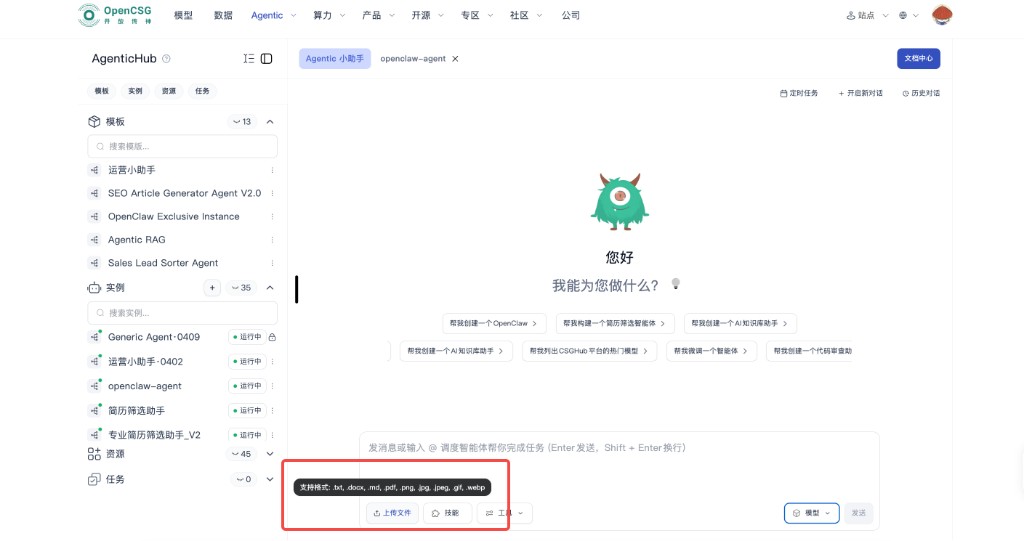
In an instance’s chat page, focus on the bottom input: upload is to the left of skills and tools; on the right are model and send. Hover upload to see allowed extensions.
Typical document types: .txt, .docx, .md, .pdf; image: .png, .jpg, .jpeg, .gif, .webp. Per-file size, total attachments, and drag-and-drop rules follow the console. For large files, split uploads and verify hashes locally before submit.
- Redact or label sensitivity before upload; if content will be indexed or kept long term, align with the data owner on class and visibility.
- After upload, you can read the document in the right-hand preview. See File upload and preview.