Session scheduled tasks
Scheduled tasks send a prompt to a chosen agent at a set time—good for standup reminders, daily digests, and periodic checks. Schedule types, time zones, and retries follow production. Run control and history in the left Tasks list: Task scheduling.
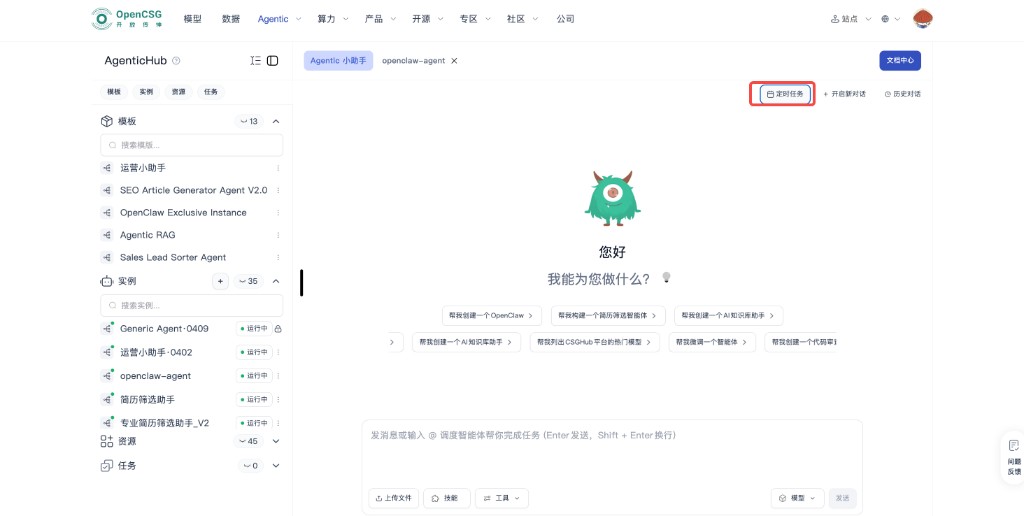
Step 1: Open an instance chat from the left list. On the top bar, next to New conversation and History, open scheduled tasks.
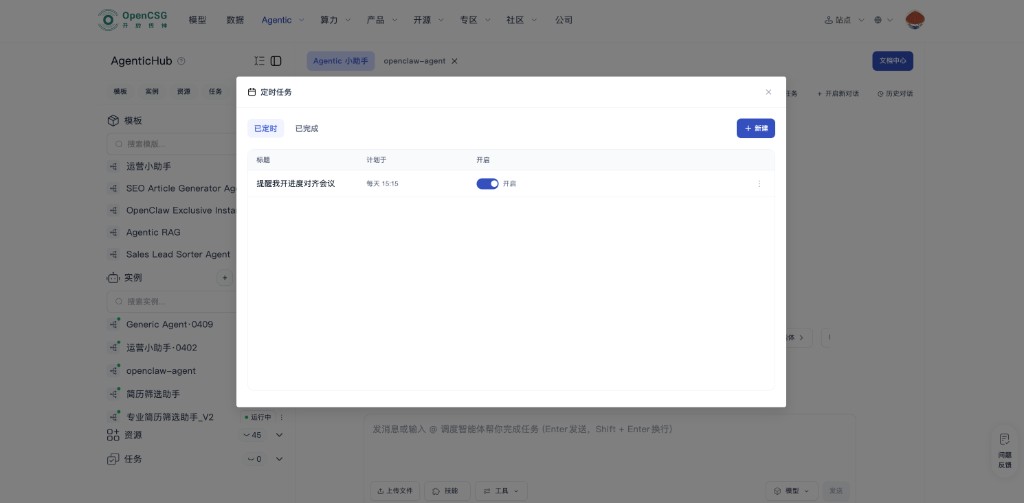
Step 2: The dialog splits scheduled and completed items. Use the per-row toggle to pause or resume; New (typically top right) creates a rule; row menus support edit or delete.
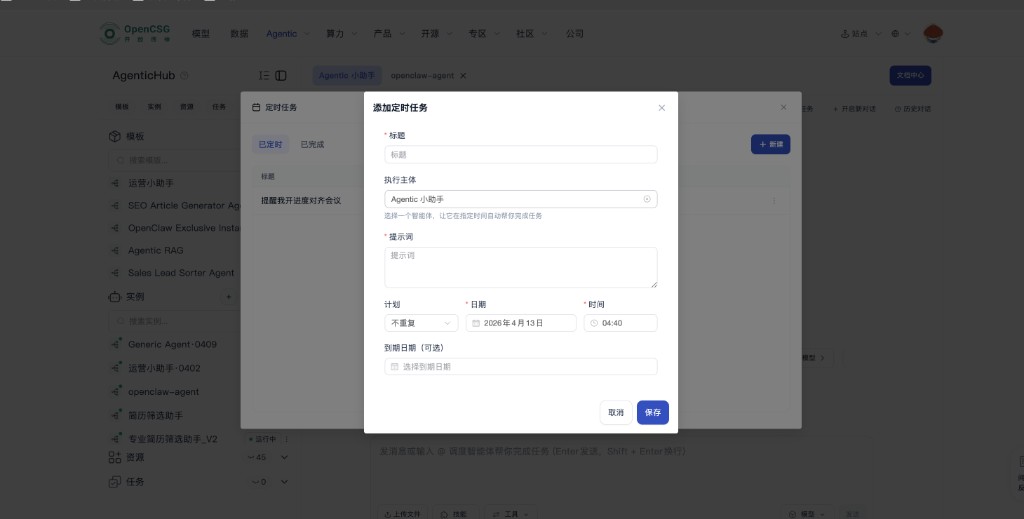
Step 3: Title and prompt are required. Choose the run-as agent, frequency (once or daily, for example), date, and time. Repeating jobs may have an end date. Review and save.
Recommendations
- Make prompts self-contained, including what to do on failure.
- Align platform time with business calendars for recurring jobs.
- If the run-as agent can call sensitive tools or knowledge bases, apply least privilege.
Did not run as expected: Confirm the Scheduled tab, the toggle is on, the run-as agent is still available, the time is not already past or still in the future, and account permissions have not changed. For duplicates, check whether multiple rules point to the same time.