API Keys
API Keys are authentication credentials for calling AI Gateway services. They can be created and managed in both Account Settings (personal) and Organization Settings. Unlike Git Access Tokens, API Keys are designed exclusively for AI Gateway inference calls — they support multiple concurrent keys, each with its own name, usage quota, and expiration date.
API Keys vs. Git Access Token
| API Keys | Git Access Token | |
|---|---|---|
| Purpose | Call AI Gateway inference endpoints | Git operations (clone/push/pull) and CSGHub API |
| Quantity | Multiple keys can coexist | Only one active token at a time |
| Management | Create, name, set quota, set expiry, enable/disable, delete | Only needs to be refreshed (reset) |
Where to Manage API Keys
API Keys support two management scopes:
- Personal API Keys: For calling AI Gateway under your personal account. Go to Account Settings → API Keys.
- Organization API Keys: For calling AI Gateway under an organization identity, ideal for team-shared access or per-project quota isolation. Go to Organization Settings → API Keys.
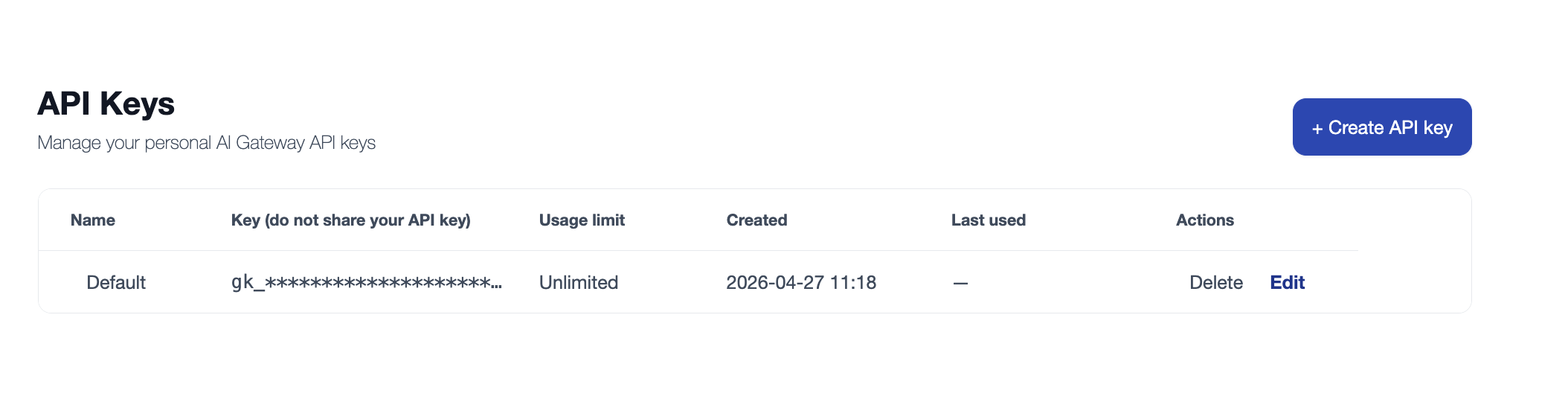
Creating an API Key
-
Navigate to the API Keys management page (personal or organization).
-
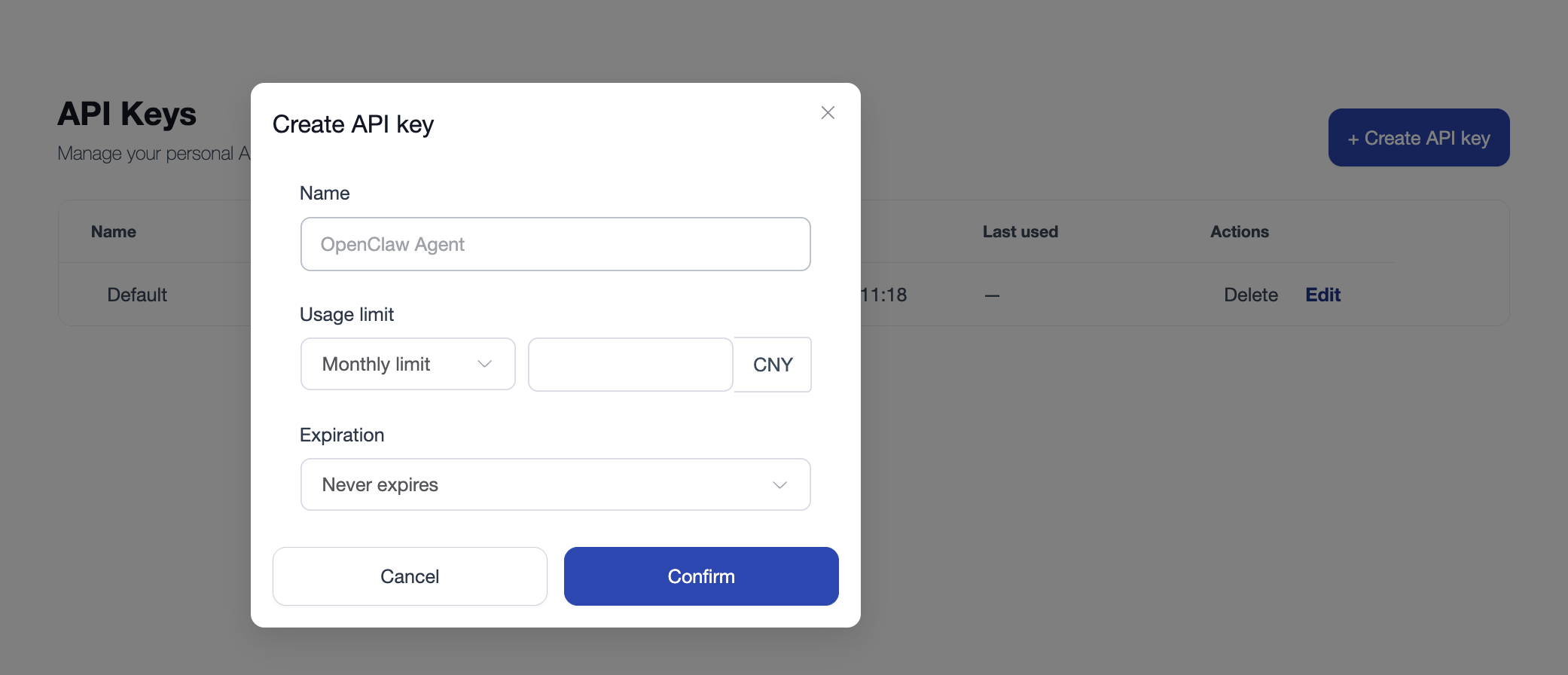
Click the New API Key button. A creation dialog will appear.
-
Fill in the following fields:
- Name (required): A descriptive label for this key, e.g.,
production,testing. - Usage Quota (optional): Set a spending limit for this key:
- Unlimited: No spending cap.
- Monthly Quota: Resets each calendar month; requests are rejected once the limit is reached.
- Total Quota: Cumulative spending cap for the entire lifetime of the key.
- Expiration (optional): Set an expiry date for the key, or choose Never expires.
- Name (required): A descriptive label for this key, e.g.,
-
Click Create. The system will generate an API Key prefixed with
gw-sk-.
Important: Save your API Key immediately
The full API Key is displayed only once after creation. Once you close the dialog, the key will be masked (e.g., gw-sk-****abcde) and cannot be retrieved again. Make sure to copy and store it securely before closing.
API Keys List
The API Keys list shows the following information:
| Field | Description |
|---|---|
| Name | The label assigned when the key was created |
| API Key | The masked key (e.g., gw-sk-****7f2a) |
| Status | The key's current operational status (Enabled or Disabled) |
| Usage Quota | Amount consumed / limit set (e.g., ¥45.50 / Unlimited) |
| Expiration | The key's expiry date |
| Created At | The date the key was created |
| Actions | Edit quota, toggle enable/disable, or delete the key |
API Key Lifecycle Management (Enable / Disable / Delete)
The platform provides fine-grained lifecycle management for API Keys, supporting temporary access suspension without permanent deletion:
1. Temporary Disabling and Re-enabling
- Temporary Disabling (Disable):
- Find the target key in the API Keys list.
- Toggle the switch in the Actions column to Disabled.
- Once disabled, the key is immediately suspended. AI Gateway will reject all requests carrying this key with a
401 Unauthorizederror. - Preserves configuration and usage history: When disabled, quota settings, expiration time, and historical consumption data remain intact.
- Re-enabling (Enable):
- When maintenance or investigation is complete, simply toggle the switch back to Enabled. The key will resume functioning immediately without requiring client application reconfiguration or key rotation.
Operational Recommendation: When suspecting credential leakage, investigating abnormal traffic surges, or conducting routine maintenance, use the "Disable" toggle first rather than permanently deleting the key.
2. Permanently Deleting an API Key
- Locate the key you want to permanently decommission in the API Keys list.
- Click the Delete icon in the Actions column.
- Confirm the deletion in the modal dialog.
Deletion is permanent and irreversible: Once deleted, the key is permanently destroyed and cannot be restored. All requests using this key will be permanently rejected. Ensure that all client applications have migrated to a replacement key before deletion.
How to Use an API Key
Once you have your API Key, include it as a Bearer Token in the Authorization header to call any AI Gateway model endpoint:
curl https://<your-gateway-host>/v1/chat/completions \
  -H "Authorization: Bearer gw-sk-xxxxxxxxxxxxxxxx" \
  -H "Content-Type: application/json" \
  -d '{
    "model": "Qwen2.5-72B-Instruct",
    "messages": [{"role": "user", "content": "Hello!"}]
  }'
AI Gateway is fully compatible with the OpenAI API standard. You can use the OpenAI SDK, LangChain, or any compatible tool by simply replacing the base_url and API key:
from openai import OpenAI

client = OpenAI(
    api_key="gw-sk-xxxxxxxxxxxxxxxx",
    base_url="https://<your-gateway-host>/v1"
)

response = client.chat.completions.create(
    model="Qwen2.5-72B-Instruct",
    messages=[{"role": "user", "content": "Hello!"}]
)
print(response.choices[0].message.content)
FAQ
Q: What should I do if my API Key is leaked?
A: Go to the API Keys management page immediately and delete the compromised key. AI Gateway will instantly block all requests using that key. Create a new key to replace it in your applications.
Q: Can I use an API Key for Git operations?
A: No. API Keys are exclusively for AI Gateway inference calls. For Git operations and CSGHub platform API access, use your Git Access Token instead.
Q: What's the difference between a personal API Key and an organization API Key?
A: The usage is identical. The difference is in billing attribution: usage from a personal key is charged to your personal account, while usage from an organization key is charged to the organization's account. This makes it easy to track costs by team or project.